Sunday, 30 October 2016
Saturday, 29 October 2016
Thursday, 27 October 2016
Wireless Hacking Tools
People also use wireless in their home network to connect all devices. Every person can see the neighborhood wi-fi networks in the system, and they want to use it for free. But most these networks are secured with a password key. You need to know this security key to access the network. When your own network is down, you will desperately want to connect to these neighborhood networks. For this, people generally search for wi-fi password cracking tools to get unauthorized access to those wireless networks.
Wireless Networks and Hacking
Wireless networks are based on IEEE 802.11 standards defined by IEEE(Institute of Electrical and Electronics Engineers) for ad hoc networks or infrastructure networks. Infrastructure networks have one or more access points which coordinate the traffic between the nodes. But in ad hoc networks, there is no access point; each node connects in a peer-to-peer way.
Basically there are two types of vulnerabilities which can be found in the Wireless LAN. One is poor configuration and the other is poor encryption. Poor configuration is caused by the network admin who manages the network. It may include the weak password, no security settings, use of default configurations, and other user related things. Poor encryption is related to security keys used to protect the wireless network. It is there because of issues in WEP or WPA.
WEP and WPA
WEP and WPA are the two main security protocols used in Wi-Fi LAN. WEP is known as Wired Equivalent Privacy (WEP). It is a deprecated security protocol which was introduced back in 1997 as a part of original 802.11 standards. But it was weak, and several serious weakness were found in the protocol. Now, this can be cracked within minutes. So, a new kind of security protocol was introduced in 2003. This new protocol was Wi-Fi Protected Access (WPA). It has mainly two versions, 1 and 2 (WPA and WPA2). Now it is the current security protocol used in wireless networks. To get unauthorized access to a network, one needs to crack these security protocols. There are many tools which can crack Wi-Fi encryption. These tools can either take advantage of WEP weaknesses or use bruteforce attacks on WPA/WPA2. I am sure now you know that you should never use WEP security.
Basically wireless hacking tools are of two types. One of which can be used to sniff the network and monitor what is happening in the network. And other kinds of tools are used to hack WEP/WPA keys. These are the popular tools used for wireless password cracking and network troubleshooting.
1. Aircrack
Aircrack is one of the most popular wireless passwords cracking tools which you can use for 802.11a/b/g WEP and WPA cracking. Aircrack uses the best algorithms to recover wireless passwords by capturing packets. Once enough packets have been gathered, it tries to recover the password. To make the attack faster, it implements a standard FMS attack with some optimizations.
The company behind the tool also offers an online tutorial where you can learn how to install and use this tool to crack wireless passwords. It comes as Linux distribution, Live CD and VMware image options. You can use any of these. It supports most of the wireless adapters and is almost guaranteed to work. If you are using a Linux distribution, the only drawback of the tool is that it requires deeper knowledge of Linux. If you are not comfortable with Linux, you will find it hard to use this tool. In this case, try Live CD or VMWare image. VMWare Image needs less knowledge, but it only works with a limited set of host OS, and only USB devices are supported.
Before you start using this too, confirm that the wireless card can inject packets. Then start WEP cracking. Read the online tutorial on the website to know more about the tool. If you will follow steps properly, you will end up getting success with this tool.
Download: http://www.aircrack-ng.org/
2. AirSnort
AirSnort is another popular tool for decrypting WEP encryption on a wi-fi 802.11b network. It is a free tool and comes with Linux and Windows platforms. This tool is no longer maintained, but it is still available to download from Sourceforge. AirSnort works by passively monitoring transmissions and computing encryption keys once it has enough packets received. This tool is simple to use. If you are interested, you can try this tool to crack WEP passwords.
3. Cain & Able
Cain & Able is a popular password cracking tool. This tool is developed to intercept network traffic and then discover passwords by bruteforcing the password using cryptanalysis attack methods. It can also recover wireless network keys by analyzing routing protocols. It you are trying to learn wireless security and password cracking, you should once try this tool.
Download: http://www.oxid.it/cain.html
4. Kismet
Kismet is the wi-fi 802.11 a/b/g/n layer2 wireless network sniffer and IDS. It works with any wi-fi card which supports rfmon mode. It passively collects packets to identify networks and detect hidden networks. It is built on client/server modular architecture. It is available for Linux, OSX, Windows and BSD platforms.
Download: http://www.kismetwireless.net/
5. NetStumbler
NetStumbler is a popular Windows tool to find open wireless access points. This tool is free and is available for Windows. A trimmed down version of the tool is also available. It is called MiniStumbler.
Basically NetStumblet is used for wardriving, verifying network configurations, finding locations with a poor network, detecting unauthorized access points, and more.
But the tool also has a big disadvantage. It can be easily detected by most of the wireless intrusion detection systems available. This is because it actively probes a network to collect useful information. Another disadvantage of the tool is that it does not work properly with the latest 64 bit Windows OS. This is because the tool was last updated back in April 2004. It has been around 11 years since the last stable release of the tool.
Download Netstumbler: http://www.stumbler.net/
6. inSSIDer
inSSIDer is a popular Wi-Fi scanner for Microsoft Windows and OS X operating systems. Initially the tool was opensource. Later it became premium and now costs $19.99. It was also awarded as “Best Opensource Software in Networking”. The inSSIDer wi-fi scanner can do various tasks, including finding open wi-fi access points, tracking signal strength, and saving logs with GPS records.
Download inSSIDer: http://www.inssider.com/
7. WireShark
WireShark is the network protocol analyzer. It lets you check what is happening in your network. You can live capture packets and analyze them. It captures packets and lets you check data at the micro-level. It runs on Windows, Linux, OS X, Solaries, FreeBSD and others. WireShark requires good knowledge of network protocols to analyze the data obtained with the tool. If you do not have good knowledge of that, you may not find this tool interesting. So, try only if you are sure about your protocol knowledge.
Download Wireshark: https://www.wireshark.org/
8. CoWPAtty
CoWPAtty is an automated dictionary attack tool for WPA-PSK. It runs on Linux OS. This program has a command line interface and runs on a word-list that contains the password to use in the attack.
Using the tool is really simple, but it is slow. That’s because the hash uses SHA1 with a seed of SSID. It means the same password will have a different SSIM. So, you cannot simply use the rainbow table against all access points. So, the tool uses the password dictionary and generates the hack for each word contained in the dictionary by using the SSID.
The new version of the tool tried to improve the speed by using a pre-computed hash file. This pre-computed file contains around 172000 dictionary file for around 1000 most popular SSIs. But if your SSID is not in those 1000, you are unlucky.
Download CoWPAtty: http://sourceforge.net/projects/cowpatty/
9. Airjack
Airjack is a Wi-Fi 802.11 packet injection tool. This wireless cracking tool is very useful in injecting forged packets and making a network down by denial of service attack. This tool can also be used for a man in the middle attack in the network.
Download AirJack: http://sourceforge.net/projects/airjack/
10. WepAttack
WepAttack is an open source Linux tool for breaking 802.11 WEP keys. This tool performs an active dictionary attack by testing millions of words to find the working key. Only a working WLAN card is required to work with WepAttack.
Download WebAttack: http://wepattack.sourceforge.net/
11. OmniPeek
OmniPeek is another nice packet sniffer and network analyzer tool. This tool is commercial and supports only Windows operating systems. This tool is used to capture and analyze wireless traffic. But it requires you to have good knowledge of protocols to properly understand things. A good thing is that the tool works with most of the network interface cards available in market. This tool is used for network troubleshooting. This tool also supports plugins, and 40 plugins are already available to extend the features of the tool.
12. CommView for WiFi
CommView for WiFi is another popular wireless monitor and packet analyzer tool. It comes with an easy to understand GUI. It works fine with 802.11 a/b/g/n/ac networks. It captures every packet and displays useful information as a list. You can get useful information like access points, stations, signal strength, network connections and protocol distribution.
Captured packets can be decrypted by user-defined WEP or WPA keys.
This tool is basically for wi-fi network admins, security professionals, and home users who want to monitor their wi-fi traffic and programmers working on software for wireless networks.
Download CommView: http://www.tamos.com/products/commwifi/
13. CloudCracker
CloudCracker is the online password cracking tool for cracking WPA protected wi-fi networks. This tool can also be used to crack different password hashes. Just upload the handshake file, enter the network name and start the tool. This tool has a huge dictionary of around 300 million words to perform attacks.
Try Cloudcracker: https://www.cloudcracker.com/
Basic Understanding of Wireless Concepts
Mobility is now a common thing in a business environment, you no
longer are fixed to specific cubicle in the work place anymore. What is
also amazing is it will continue to change and become easier for
employees to get work done, with their phone, tablet, and laptop
computer. But what makes this possible? What is the underlying
component? The internet is becoming more available in more locations,
coffee shops, airports, and your cell phone service provider, with 3G
and 4G speeds. Along with the United States of America which is also
moving forward with the National Broadband Plan. So today let’s explore the wireless concepts!
Wireless can be a scary as you can’t control it. The signal is transmitted in radio waves and if set up insecurely the WLAN (Wireless Local Area Network) can easily be your weakest link compared to Ethernet LANs.
There are four organizations that deal with the wireless standards and products:
The wireless 802.11 standard can run in two modes:

This is an example of an infrastructure mode that uses BSS. Notice how there can only be one access point if you are using the BSS service set.

This is an example of an infrastructure mode that uses ESS. Notice how multiple access points can be configured to allow roaming and a lager coverage area.

Remember that when using wireless it uses the CSMA/CA algorithm the devices must listen to make sure that nobody is transmitting. It will then set a random timer to reduce the change of a collision, when the timer expires the device will listen again, if there is nobody transmitting the device will send the frame. When the frame is sent the device will listen of an acknowledgment from the access point, if no acknowledgment is received then the device will resend the frame but use the CSMA/CA logic.
That’s it! At least for now check back later and I’ll talk about the different standards of 802.11a, 802.11b, 802.11g, or 802.11n. I will also go over encryption and some best security practices for wireless LAN networks. I hope this information was informative and if you have any questions, comments or other ICND1 or ICND2 suggestions let me know
Wireless can be a scary as you can’t control it. The signal is transmitted in radio waves and if set up insecurely the WLAN (Wireless Local Area Network) can easily be your weakest link compared to Ethernet LANs.
There are four organizations that deal with the wireless standards and products:
- IEEE develops the wireless standards (802.11) The IEEE also develops other standards as well.
- ITU-R is the worldwide standardization and communications that use and assign different frequencies. This helps you as a consumer if you moved/travel around the world. You are still able to use the 802.11 standard worldwide. Without the need of different devices.
- Wi-Fi Alliance is an industry that is worldwide that encourages interoperability of products that use WLAN standards to be certified under the Wi-Fi Alliance program.
- Federal Communications Commission (FCC) is the U.S government agency that regulates the usage of various communication frequencies in the U.S.
The wireless 802.11 standard can run in two modes:
- Ad Hoc which uses the independent Basic Service Set (IBSS) this allows more than two devices to communicate directly with no access point needed or network needed.
- Infrastructure mode which uses either Basic Service Set (BSS) which uses a single wireless LAN created by one access point and all devices use that access point. Or Extended Service Set (ESS) which uses multiple access points to create one wireless LAN, this allows devices to roam between access points and this covers a larger area compared to the BSS.

This is an example of an infrastructure mode that uses BSS. Notice how there can only be one access point if you are using the BSS service set.

This is an example of an infrastructure mode that uses ESS. Notice how multiple access points can be configured to allow roaming and a lager coverage area.

Remember that when using wireless it uses the CSMA/CA algorithm the devices must listen to make sure that nobody is transmitting. It will then set a random timer to reduce the change of a collision, when the timer expires the device will listen again, if there is nobody transmitting the device will send the frame. When the frame is sent the device will listen of an acknowledgment from the access point, if no acknowledgment is received then the device will resend the frame but use the CSMA/CA logic.
That’s it! At least for now check back later and I’ll talk about the different standards of 802.11a, 802.11b, 802.11g, or 802.11n. I will also go over encryption and some best security practices for wireless LAN networks. I hope this information was informative and if you have any questions, comments or other ICND1 or ICND2 suggestions let me know
Wednesday, 26 October 2016
How to Use ARP protocol , to Get local network connected Host's MAC Address & IP-address
If your using Ubuntu software, follow below steps
Install using this command:
sudo apt-get install arp-scan
To list all IP addresses and associated MAC addresses, use:
sudo arp-scan --interface=eth0 --localnet
The output will look like this:
Interface: eth0, datalink type: EN10MB (Ethernet)
Starting arp-scan 1.8.1 with 16777216 hosts (http://www.nta-monitor.com/tools/arp-scan/)
192.168.1.3 38:60:77:29:31:36 (Unknown)
192.168.1.8 4c:72:b9:7c:bb:7e (Unknown)
192.168.1.110 00:15:17:5f:d2:80 Intel Corporate
192.168.1.111 00:ff:88:5f:fd:f0 (Unknown)
192.168.1.153 00:15:17:5f:d2:82 Intel Corporate
192.168.1.180 52:54:00:70:04:02 QEMU
192.168.1.199 52:54:00:fe:7f:78 QEMU
Wire-shark output will be like this :
Request :
response :
Monday, 24 October 2016
Basic Commands for Troubleshooting network connectivity
IPCONFIG Command
ipconfig
Is used to find out your current TCP/IP settings. With IPCONFIG you can find out your IP Address, find your Default Gateway and find your Subnet Mask. This is a very handy network tool for finding your local IP address.
ipconfig /all
To display all your IP information for all adapters. With ipconfig /all you can also find out your DNS Server and MAC Address. This will show your full TCP/IP configuration for all adapters on your Windows machine. You can find out your own IP Address as well as your default gateway.
ipconfig /release
To release your current IP information and obtain a new IP Address from the DHCP server.
ipconfig /renew
Used to renew your IP Address if you have it set to obtain IP Address automatically.
ipconfig /displaydns
This shows your current DNS Resolver Cache Logs.
ipconfig /flushdns
The Flush DNS Command flushes or clears your current DNS Resolver Cache Logs.
ipconfig /registerdns
The register DNS command updates the DNS settings on the Windows computer. It doesn’t just access the local DNS cache, it initiates communication with the DNS server and the DHCP server so it can re-register the network address. You can use this for troubleshooting problems with connection to the ISP (Internet Service Provider), like failing to obtain a dynamic IP address from the DHCP Server or failing to connect to the ISP DNS server.
If you ever wonder "what your IP Address is" you would run an ipconfig as shown above. If you need to find your IP address, default gateway(router login) or subnet mask ip config is the tool to use. These numbers can be very helpful when trouble shooting your local network connection. If you have changed your settings but they are not taking place you may try a ipconfig release and renew. If you’re having problems resolving to a website you may try flushing your DNS Resolver Logs.
PING Command
In all of these examples “xxx.xxx.xxx.xxx” is an example of a Domain Name or an IP Address. You must fill those out yourself.
ping xxx.xxx.xxx.xxx
To Ping an IP Address you would type the following DOS Command in the Windows Command Prompt. Ping followed by an IP address. That is how you do an internet ping.
ping site.com (web address)
To ping a website you would type ping followed by the website domain name. If you know the websites IP Address you can ping it too.
Ping Command Switches
You maybe use the switches together.
ping xxx.xxx.xx.xx -t
Continuous Ping – It will keep on pinging forever until you hit Ctrl + C to stop it. This can be great for troubleshooting intermittent connections. Just open up a Command Prompt(or 3) and run the continuous ping command on a site like Google.com to see when you’re dropping packets. I would also run one on your router and on another site like site.com for a better data sample control group. What I mean by this, is if you’re pinging your website and losing packets yet not losing packets to Google, you know the problem is somewhere between you and your hosting company. If you are losing packets to your own router, the problem is with your local network. It could be the cat5 cable, your router or your hardware. You will have to do further troubleshooting to figure out where the problem is. To check if it is your router, do the same ping from another computer and if it is fine, it is your hardware or cable and not the router. You get the idea, use your head, be logical, troubleshoot.
ping xxx.xxx.xx.xx -n 10
Number of Pings – The N Switch is simply for setting the number of pings. By default the ping cmd sends out 4 packets at 32 bytes each.
ping xxx.xxx.xx.xx -l 1500
Size of Packet – By default the packets sent are a small 32 bytes. You can set your own size up to the max 65500 bytes. This can really help for stress testing your local network.
ping xxx.xxx.xx.xx -w 5000
Time Out – This is in milliseconds. The timeout by default is 4,000 milliseconds which amounts to 4 minutes. Just seeing if you were still paying attention. It really is only 4 seconds.
ping -a xxx.xxx.xx.xx
Resolves Hostname Address – This is a great one if you are helping someone else and need to find out what router model they are using. You an resolve the host of an IP Address with this command. Try pinging your router or your local computer with it. ping -a 127.0.0.1. Note that this switch will only work in front of the IP Address.
Ping Command Summary
The Ping command is a network tool used to determine if you are able to send packets between your network computer on the internet to another computer without losing packets along the way. By doing this you can determine if you’re online or if a website is down. It also calculates round trip time and Time to Live. This can let you know if your NIC card is working properly and if you’re able to reach your router or modem. It is an invaluable command for troubleshooting internal network and external internet connections.
Networking Basics Command Prompt
tracert site.com
With Trace route you can trace the path your packets take across the internet from you to your destination. Along the way you can determine the time from hop to hop. You can identify server problems and latency with this tool. It really helps see where the failure is between you and a destination. It may very well even be out of your hands.
nslookup site.com
nslookup xxx.xxx.xxx.xxx
nslookup is a way to get the IP address for a domain name. You can also do a reverse lookup from Domain Name to IP Address. It can be a way to find out if your DNS is properly working or if the site is having problems. You can obtain an IP from a site and try to visit the IP directly, bypassing the Domain Name Servers that would usually resolve the Domain name to IP name.
netstat
netstat can be used to view your active network connections and TCP/IP connections. You can determine what ports are open and being used, what programs are using your ports and what kind of TCP and UDP connections are present. Looking in here for the first time may scare the hell out of you.
netstat Switches
netstat -a Displays all active TCP connections. And TCP / UDP ports.
netstat -e Displays ethernet statistics.
netstat -b Displays all active programs that are listening.
netsh winsock reset winsock reset
netsh int ip reset resetlog.txt TCP/IP reset
netsh is used to reset or rebuild the Windows TCP/IP IP Stack. This can be done if you have a problem with DNS. Say you are able to browse to a sites IP address but not to it’s Domain Name. You can find the sites IP by using nslookup mentioned above.
You may need to run this command as an administrator by right clicking, run as admin for elevated permissions.
getmac
How do I find my MAC Address you might ask?
If you open up the command prompt you simply type getmac to get your computers local MAC address.
arp -a
To get the MAC address of your router or other devices on your local network, you may use the arp -a command. With this information, you can find out what type of router you are connected to by using this website. Simply plug in the MAC Address of your default gateway(found from IPCONFIG) and you can get the brand name of your router without looking at it. Pretty neat. Helpful in some situations.
ipconfig
Is used to find out your current TCP/IP settings. With IPCONFIG you can find out your IP Address, find your Default Gateway and find your Subnet Mask. This is a very handy network tool for finding your local IP address.
ipconfig /all
To display all your IP information for all adapters. With ipconfig /all you can also find out your DNS Server and MAC Address. This will show your full TCP/IP configuration for all adapters on your Windows machine. You can find out your own IP Address as well as your default gateway.
ipconfig /release
To release your current IP information and obtain a new IP Address from the DHCP server.
ipconfig /renew
Used to renew your IP Address if you have it set to obtain IP Address automatically.
ipconfig /displaydns
This shows your current DNS Resolver Cache Logs.
ipconfig /flushdns
The Flush DNS Command flushes or clears your current DNS Resolver Cache Logs.
ipconfig /registerdns
The register DNS command updates the DNS settings on the Windows computer. It doesn’t just access the local DNS cache, it initiates communication with the DNS server and the DHCP server so it can re-register the network address. You can use this for troubleshooting problems with connection to the ISP (Internet Service Provider), like failing to obtain a dynamic IP address from the DHCP Server or failing to connect to the ISP DNS server.
If you ever wonder "what your IP Address is" you would run an ipconfig as shown above. If you need to find your IP address, default gateway(router login) or subnet mask ip config is the tool to use. These numbers can be very helpful when trouble shooting your local network connection. If you have changed your settings but they are not taking place you may try a ipconfig release and renew. If you’re having problems resolving to a website you may try flushing your DNS Resolver Logs.
PING Command
In all of these examples “xxx.xxx.xxx.xxx” is an example of a Domain Name or an IP Address. You must fill those out yourself.
ping xxx.xxx.xxx.xxx
To Ping an IP Address you would type the following DOS Command in the Windows Command Prompt. Ping followed by an IP address. That is how you do an internet ping.
ping site.com (web address)
To ping a website you would type ping followed by the website domain name. If you know the websites IP Address you can ping it too.
Ping Command Switches
You maybe use the switches together.
ping xxx.xxx.xx.xx -t
Continuous Ping – It will keep on pinging forever until you hit Ctrl + C to stop it. This can be great for troubleshooting intermittent connections. Just open up a Command Prompt(or 3) and run the continuous ping command on a site like Google.com to see when you’re dropping packets. I would also run one on your router and on another site like site.com for a better data sample control group. What I mean by this, is if you’re pinging your website and losing packets yet not losing packets to Google, you know the problem is somewhere between you and your hosting company. If you are losing packets to your own router, the problem is with your local network. It could be the cat5 cable, your router or your hardware. You will have to do further troubleshooting to figure out where the problem is. To check if it is your router, do the same ping from another computer and if it is fine, it is your hardware or cable and not the router. You get the idea, use your head, be logical, troubleshoot.
ping xxx.xxx.xx.xx -n 10
Number of Pings – The N Switch is simply for setting the number of pings. By default the ping cmd sends out 4 packets at 32 bytes each.
ping xxx.xxx.xx.xx -l 1500
Size of Packet – By default the packets sent are a small 32 bytes. You can set your own size up to the max 65500 bytes. This can really help for stress testing your local network.
ping xxx.xxx.xx.xx -w 5000
Time Out – This is in milliseconds. The timeout by default is 4,000 milliseconds which amounts to 4 minutes. Just seeing if you were still paying attention. It really is only 4 seconds.
ping -a xxx.xxx.xx.xx
Resolves Hostname Address – This is a great one if you are helping someone else and need to find out what router model they are using. You an resolve the host of an IP Address with this command. Try pinging your router or your local computer with it. ping -a 127.0.0.1. Note that this switch will only work in front of the IP Address.
Ping Command Summary
The Ping command is a network tool used to determine if you are able to send packets between your network computer on the internet to another computer without losing packets along the way. By doing this you can determine if you’re online or if a website is down. It also calculates round trip time and Time to Live. This can let you know if your NIC card is working properly and if you’re able to reach your router or modem. It is an invaluable command for troubleshooting internal network and external internet connections.
Networking Basics Command Prompt
tracert site.com
With Trace route you can trace the path your packets take across the internet from you to your destination. Along the way you can determine the time from hop to hop. You can identify server problems and latency with this tool. It really helps see where the failure is between you and a destination. It may very well even be out of your hands.
nslookup site.com
nslookup xxx.xxx.xxx.xxx
nslookup is a way to get the IP address for a domain name. You can also do a reverse lookup from Domain Name to IP Address. It can be a way to find out if your DNS is properly working or if the site is having problems. You can obtain an IP from a site and try to visit the IP directly, bypassing the Domain Name Servers that would usually resolve the Domain name to IP name.
netstat
netstat can be used to view your active network connections and TCP/IP connections. You can determine what ports are open and being used, what programs are using your ports and what kind of TCP and UDP connections are present. Looking in here for the first time may scare the hell out of you.
netstat Switches
netstat -a Displays all active TCP connections. And TCP / UDP ports.
netstat -e Displays ethernet statistics.
netstat -b Displays all active programs that are listening.
netsh winsock reset winsock reset
netsh int ip reset resetlog.txt TCP/IP reset
netsh is used to reset or rebuild the Windows TCP/IP IP Stack. This can be done if you have a problem with DNS. Say you are able to browse to a sites IP address but not to it’s Domain Name. You can find the sites IP by using nslookup mentioned above.
You may need to run this command as an administrator by right clicking, run as admin for elevated permissions.
getmac
How do I find my MAC Address you might ask?
If you open up the command prompt you simply type getmac to get your computers local MAC address.
arp -a
To get the MAC address of your router or other devices on your local network, you may use the arp -a command. With this information, you can find out what type of router you are connected to by using this website. Simply plug in the MAC Address of your default gateway(found from IPCONFIG) and you can get the brand name of your router without looking at it. Pretty neat. Helpful in some situations.
jMeter Tutorial
jMeter is an Open Source testing software. It is 100% pure Java application for load and performance testing. jMeter is designed to cover categories of tests like load, functional, performance, regression, etc., and it requires JDK 5 or higher. This tutorial will give you great understanding on jMeter framework needed to test an enterprise level application to deliver it with robustness and reliability.
Writing a Test Plan
Follow the steps given below to write a test plan −
Step 1 − Start the JMeter Window
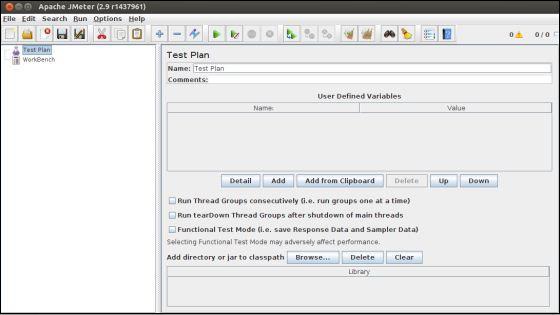
Open the JMeter window by clicking /home/manisha/apache-jmeter-2.9/bin/jmeter.sh. The JMeter window will appear as below −

This is a plain and blank JMeter window without any additional elements added to it. It contains two nodes −
- Test Plan node − is where the real test plan is kept.
- Workbench node − It simply provides a place to temporarily store test elements while not in use, for copy/paste purposes. When you save your test plan, Workbench items are not saved with it.
Step 2 − Add/Remove Elements
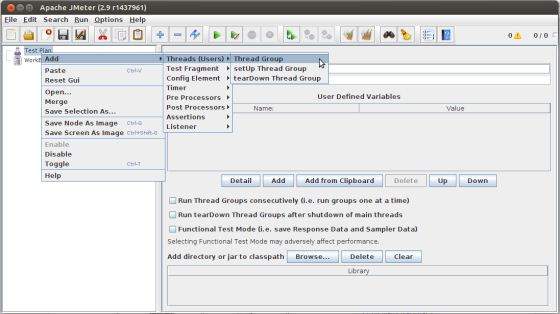
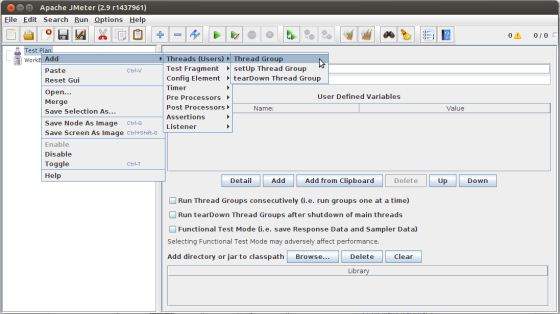
Elements (which will be discussed in the next chapter Test Plan Elements) can be added to a test plan by right-clicking on the Test Plan node and choosing a new element from the "add" list.
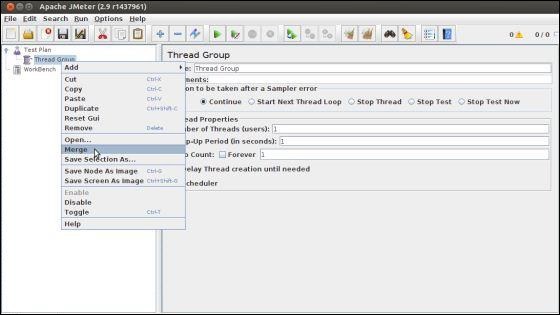
Alternatively, you can load an element from a file and add it by choosing the "merge" or "open" option.
For example, let us add a Thread Group element to a Test Plan as shown below −

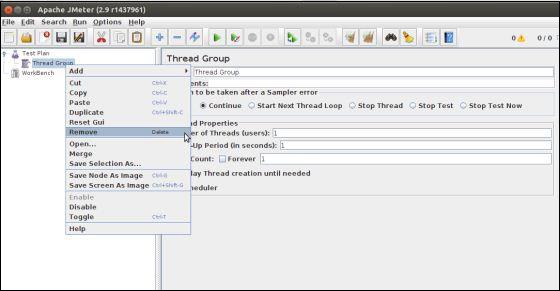
To remove an element, make sure the element is selected, right-click on the element, and choose the "remove" option.

Step 3 − Load and Save the Elements
To load an element from file −
- Right-click on the existing tree element to which you want to add the loaded element.
- Select Merge.
- Choose the file where you saved the elements.
- JMeter will merge the elements into the tree.
By default, JMeter does not save the element, you need to explicitly save it.

To save tree elements −
- Right-click on the element.
- Choose the Save Selection As ... option.
JMeter will save the element selected, plus all the child elements beneath it. By default, JMeter doesn't save the elements, you need to explicitly save it as mentioned earlier.
Step 4 − Configuring the Tree Elements
Any element in the Test Plan can be configured using the controls present in JMeter's right-hand side frame. These controls allow you to configure the behavior of that particular test element. For example, the Thread Group can be configured for a number of users, ramp up periods, etc., as shown below −

Step 5 − Saving the Test Plan
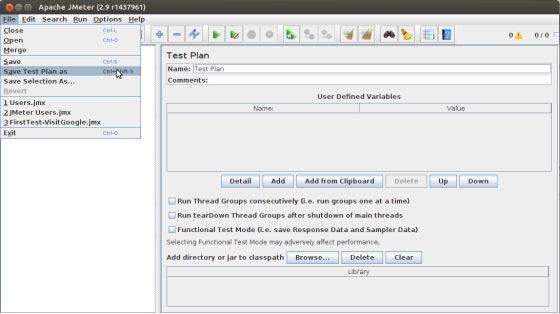
You can save an entire Test Plan by using either Save or "Save Test Plan As ..." from the File menu.

Step 6 − Run the Test Plan
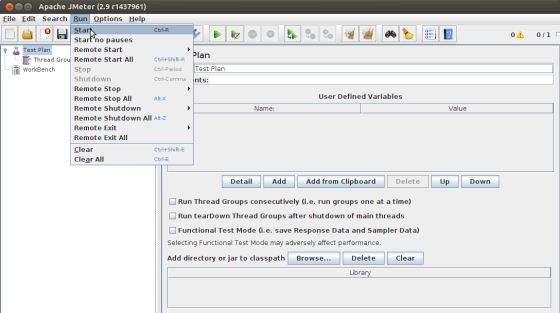
You can run the Test Plan by clicking Start(Control + r) from the Run menu item. When JMeter starts running, it shows a small green box at the right-hand end of the section just under the menubar.

The numbers to the left of the green box are the number of active threads / total number of threads. These only apply to a locally run test; they do not include any threads started on remote systems when using client-server mode.
Step 7 − Stop the Test Plan
You can stop your test in two ways −
- Using Stop (Control + '.'). It stops the threads immediately if possible.
- Using Shutdown (Control + ','). It requests the threads to stop at the end of any current work.
Create Webservice Project
To create a webservice project, we have used Eclipse IDE. First write the Service Endpoint Interface HelloWorld under the packagecom.tutorialspoint.ws. The contents of the HelloWorld.java are as follows −
package com.tutorialspoint.ws; import javax.jws.WebMethod; import javax.jws.WebService; import javax.jws.soap.SOAPBinding; import javax.jws.soap.SOAPBinding.Style; //Service Endpoint Interface @WebService @SOAPBinding(style = Style.RPC) public interface HelloWorld{ @WebMethod String getHelloWorldMessage(String string); }
This service has a method getHelloWorldMessage which takes a String parameter.
Next, create the implementation class HelloWorldImpl.java under the package com.tutorialspoint.ws.
package com.tutorialspoint.ws; import javax.jws.WebService; @WebService(endpointInterface="com.tutorialspoint.ws.HelloWorld") public class HelloWorldImpl implements HelloWorld { @Override public String getHelloWorldMessage(String myName){ return("Hello "+myName+" to JAX WS world"); } }
Let us now publish this web service locally by creating the Endpoint publisher and expose the service on the server.
The publish method takes two parameters −
- Endpoint URL String.
- Implementor object, in this case the HelloWorld implementation class, which is exposed as a Web Service at the endpoint identified by the URL mentioned in the parameter above.
The contents of HelloWorldPublisher.java are as follows −
package com.tutorialspoint.endpoint; import javax.xml.ws.Endpoint; import com.tutorialspoint.ws.HelloWorldImpl; public class HelloWorldPublisher { public static void main(String[] args){ Endpoint.publish("http://localhost:9000/ws/hello", new HelloWorldImpl()); } }
Modify the web.xml contents as shown below −
<?xml version="1.0" encoding="UTF-8"?> <!DOCTYPE web-app PUBLIC "-//Sun Microsystems, Inc.//DTD Web Application 2.3//EN" "http://java.sun.com/j2ee/dtds/web-app_2_3.dtd"> <web-app> <listener> <listener-class> com.sun.xml.ws.transport.http.servlet.WSServletContextListener </listener-class> </listener> <servlet> <servlet-name>hello</servlet-name> <servlet-class> com.sun.xml.ws.transport.http.servlet.WSServlet </servlet-class> <load-on-startup>1</load-on-startup> </servlet> <servlet-mapping> <servlet-name>hello</servlet-name> <url-pattern>/hello</url-pattern> </servlet-mapping> <session-config> <session-timeout>120</session-timeout> </session-config> </web-app>
To deploy this application as a webservice, we would need another configuration file sun-jaxws.xml. The contents of this file are as follows −
<?xml version="1.0" encoding="UTF-8"?> <endpoints xmlns="http://java.sun.com/xml/ns/jax-ws/ri/runtime" version="2.0"> <endpoint name="HelloWorld" implementation="com.tutorialspoint.ws.HelloWorldImpl" url-pattern="/hello"/> </endpoints>
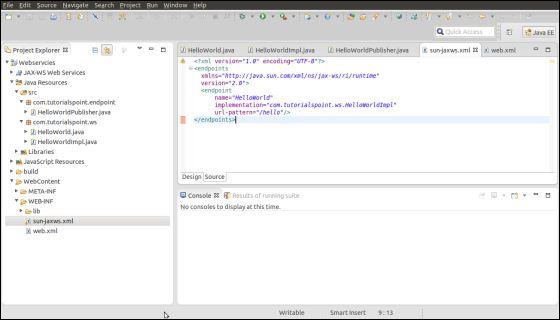
Now that all the files are ready, the directory structure would look as shown in the following screenshot −

- Now create a WAR file of this application.
- Choose the project > right click > Export > WAR file.
- Save this as hello.war file under the webapps folder of Tomcat server.
- Now start the Tomcat server.
- Once the server is started, you should be able to access the webservice with the URL − http://localhost:8080/hello/hello
Create JMeter Test plan
Now let us create a test plan to test the above webservice.
Rename the Test Plan
- Open the JMeter window by clicking /home/manisha/apache-jmeter2.9/bin/jmeter.sh.
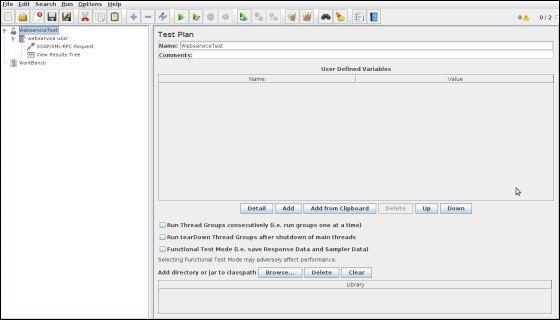
- Click the Test Plan node.
- Rename this Test Plan node as WebserviceTest.

Add Thread Group
Add one Thread Group, which is placeholder for all other elements like Samplers, Controllers, and Listeners.
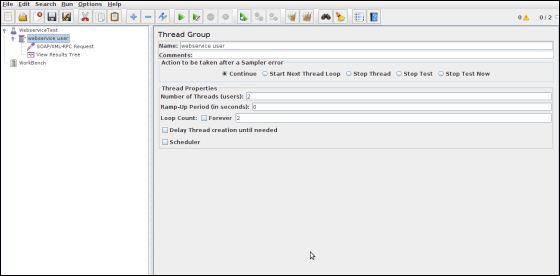
- Right click on WebserviceTest (our Test Plan) > Add > Threads (Users) > Thread Group. Thread Group will get added under the Test Plan (WebserviceTest) node.
- Next, let us modify the default properties of the Thread Group to suit our testing. Following properties are changed −
- Name − webservice user
- Number of Threads (Users) − 2
- Ramp-Up Period − leave the the default value of 0 seconds.
- Loop Count − 2

Add Sampler - SOAP/XML-RPC Request
Now that we have defined the users, it is time to define the tasks that they will be performing.
We will add SOAP/XML-RPC Request element −
- Right-click mouse button to get the Add menu.
- Select Add > Sampler > SOAP/XML-RPC Request.
- Select the SOAP/XML-RPC Request element in the tree
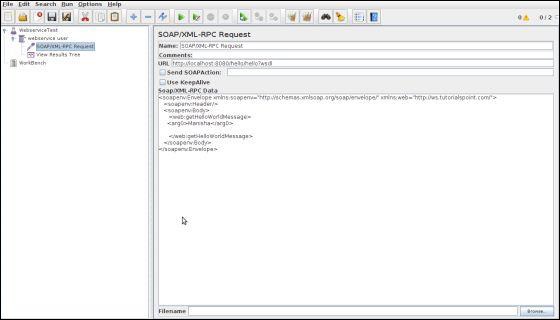
- Edit the following properties as in the image below −
- The following details are entered in this element −
- Name − SOAP/XML-RPC Request
- URL − http://localhost:8080/hello/hello?wsdl
- Soap/XML-RPC Data − Enter the below contents
<soapenv:Envelope xmlns:soapenv="http://schemas.xmlsoap.org/soap/envelope/" xmlns:web="http://ws.tutorialspoint.com/"> <soapenv:Header/> <soapenv:Body> <web:getHelloWorldMessage> <arg0>Manisha</arg0> </web:getHelloWorldMessage> </soapenv:Body> </soapenv:Envelope>

Add Listener
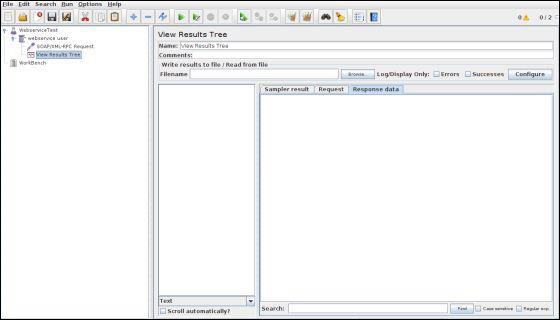
The final element you need to add to your Test Plan is a Listener. This element is responsible for storing all of the results of your HTTP requests in a file and presenting a visual model of the data.
- Select the webservice user element.
- Add a View Results Tree listener by selecting Add > Listener > View Results Tree.

Run the Test Plan
Now save the above test plan as test_webservice.jmx. Execute this test plan using Run > Start option.
View the Output
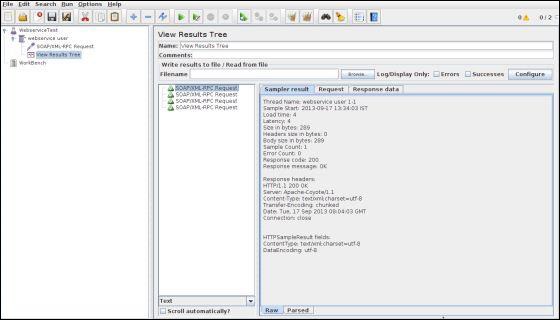
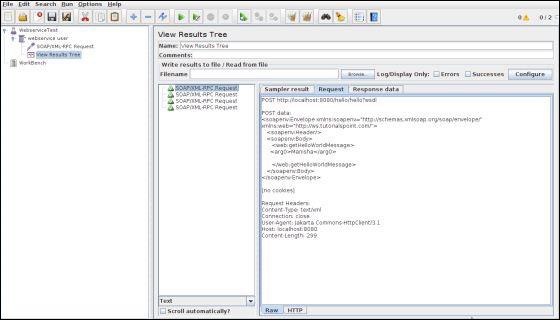
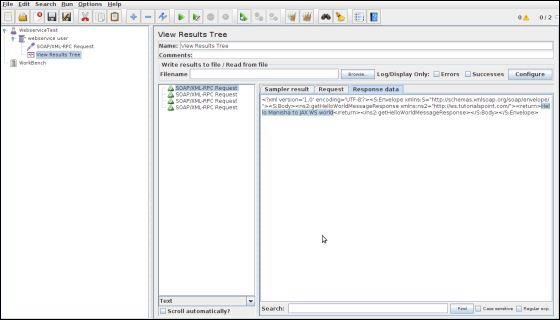
The following output can be seen in the listener.


In the last image, you can see the response message "Hello Manisha to JAX WS world".
Subscribe to:
Comments (Atom)