First of all, we need to install Wireshark. later, Need to know which network do you want to decrypt. gather the information like SSID, Password & Channel of that particular Network.
Follow below steps to know , how to decrypt WPA2/PSK.
Note : Better to have Linux machine with us. Like we have to use iwconfig to configure our interface to monitor mode.
 I have used simple plaintext password (ie wpa-pwd key type) in below. You can simply enter the plaintext password only (without SSID name).In this case wireshark try to use last seen SSID, It is always good practice to use <password:SSID>.
 Then you need to hit “Apply”
 As you can see below, now you will able to see the traffic inside these data frames. Here is the same frame (103) which you saw earlier in encrypted format, but now wireshark able to decrypt it.
 Now if you look further you will see the client is getting IP through DHCP (DORA–Discover, Offer, Request, ACK) & then register to a CME (SKINNYprotocol) & then establish a voice call (RTP) details. Now you can analyses these packets in detail
 This trick may be useful to you when you do wireless troubleshooting on your PSK networks.
Follow below steps to know , how to decrypt WPA2/PSK.
Note : Better to have Linux machine with us. Like we have to use iwconfig to configure our interface to monitor mode.
I am using 5GHz & therefore get 802.11a summary here (If you want sniff 2.4GHz, then you can issue command with 802.11b)
(4402-3) >show ap config 802.11a summary
AP Name                SubBand RadioMAC            Status     Channel   PwLvl   SlotId
--------------------   ------- ------------------  --------   -------   ------  ------
LAP1                      -    64:a0:e7:af:47:40   ENABLED    36        1       1
Simply what you have to do is take a “wireless packet capture” on CH 36 as my AP operate in that channel. I have used BackTrack with USB adapter to take this packet capture. It is just simple 2-3 line configuration required to set up a USB adapter as monitor interface for Wireshark.
root@bt:~# ifconfig
eth0      Link encap:Ethernet  HWaddr 00:21:9b:62:d0:4a
          UP BROADCAST MULTICAST  MTU:1500  Metric:1
          RX packets:0 errors:0 dropped:0 overruns:0 frame:0
          TX packets:0 errors:0 dropped:0 overruns:0 carrier:0
          collisions:0 txqueuelen:1000
          RX bytes:0 (0.0 B)  TX bytes:0 (0.0 B)
          Interrupt:21 Memory:fe9e0000-fea00000

lo        Link encap:Local Loopback
          inet addr:127.0.0.1  Mask:255.0.0.0
          inet6 addr: ::1/128 Scope:Host
          UP LOOPBACK RUNNING  MTU:16436  Metric:1
          RX packets:66 errors:0 dropped:0 overruns:0 frame:0
          TX packets:66 errors:0 dropped:0 overruns:0 carrier:0
          collisions:0 txqueuelen:0
          RX bytes:4665 (4.6 KB)  TX bytes:4665 (4.6 KB)

root@bt:~# ifconfig wlan2 up
root@bt:~# ifconfig
eth0      Link encap:Ethernet  HWaddr 00:21:9b:62:d0:4a
          UP BROADCAST MULTICAST  MTU:1500  Metric:1
          RX packets:0 errors:0 dropped:0 overruns:0 frame:0
          TX packets:0 errors:0 dropped:0 overruns:0 carrier:0
          collisions:0 txqueuelen:1000
          RX bytes:0 (0.0 B)  TX bytes:0 (0.0 B)
          Interrupt:21 Memory:fe9e0000-fea00000

lo        Link encap:Local Loopback
          inet addr:127.0.0.1  Mask:255.0.0.0
          inet6 addr: ::1/128 Scope:Host
          UP LOOPBACK RUNNING  MTU:16436  Metric:1
          RX packets:66 errors:0 dropped:0 overruns:0 frame:0
          TX packets:66 errors:0 dropped:0 overruns:0 carrier:0
          collisions:0 txqueuelen:0
          RX bytes:4665 (4.6 KB)  TX bytes:4665 (4.6 KB)

wlan2     Link encap:Ethernet  HWaddr 00:20:a6:ca:6b:b4
          UP BROADCAST MULTICAST  MTU:1500  Metric:1
          RX packets:0 errors:0 dropped:0 overruns:0 frame:0
          TX packets:0 errors:0 dropped:0 overruns:0 carrier:0
          collisions:0 txqueuelen:1000
          RX bytes:0 (0.0 B)  TX bytes:0 (0.0 B)

root@bt:~# iwconfig wlan2 channel 36
root@bt:~# iwconfig
wlan2     IEEE 802.11abgn  ESSID:off/any
          Mode:Managed  Frequency:5.18 GHz  Access Point: Not-Associated
          Tx-Power=20 dBm
          Retry  long limit:7   RTS thr:off   Fragment thr:off
          Encryption key:off
          Power Management:off

lo        no wireless extensions.

eth0      no wireless extensions.

root@bt:~# airmon-ng start wlan2
Found 1 processes that could cause trouble.
If airodump-ng, aireplay-ng or airtun-ng stops working after
a short period of time, you may want to kill (some of) them!

PID    Name
1158    dhclient3
Interface    Chipset        Driver

wlan2        Atheros AR9170    carl9170 - [phy2]
                (monitor mode enabled on mon0)
Once you do this you can open wireshark application & select the interface named “mon0” for wireless packet capturing.
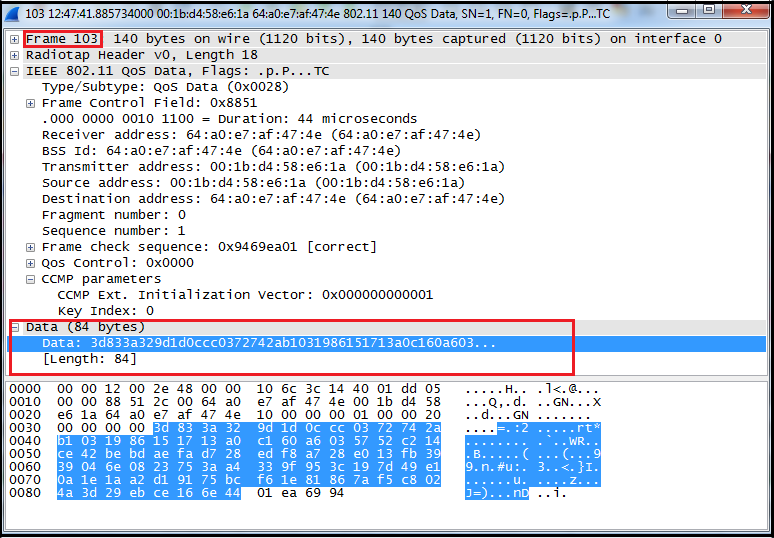
Here is my packet capture (WPA2-PSK-Final) You can open this in Wireshark to test this out by yourself. Now if you analyze this you would see “4-way handshake (EAPOL-Messages 1 to 4)” messages exchanged after Open Authentication phase finished (Auth Request, Auth Response, Association Request, Association Response). Once 4-way handshake is completed, both client & AP having required key for data encryption. So that point onwards all your data frames (not management frames, null frames) are encrypted using CCMP/AES. As you can see below, data frames are encrypted & you cannot see what traffic it is. I have taken frame 103 for example.
 Before we go & decrypt these messages, it is very important to understand that you have to properly capture “4-way handshake messages” in your sniffer in order to decrypt using Wireshark. If you are not capture M1-M4 messages successfully, Wireshark will not be able to derive all the keys to decrypt rest of that data. Here is one example where all the frames have not been captured properly in 4-way handshake process (This happened when I was using same USB adapter with Fluke WiFi Analyzer)
 Now you have to go to “Edit -> Preferences -> Protocol -> IEEE 802.11” & need to “Enable Decryption” checkbox. Then click on Edit “Decryption Keys” section & add your PSK by click “New“. You have to select Key-type as “WPA-pwd” when you enter the PSK in plaintext.
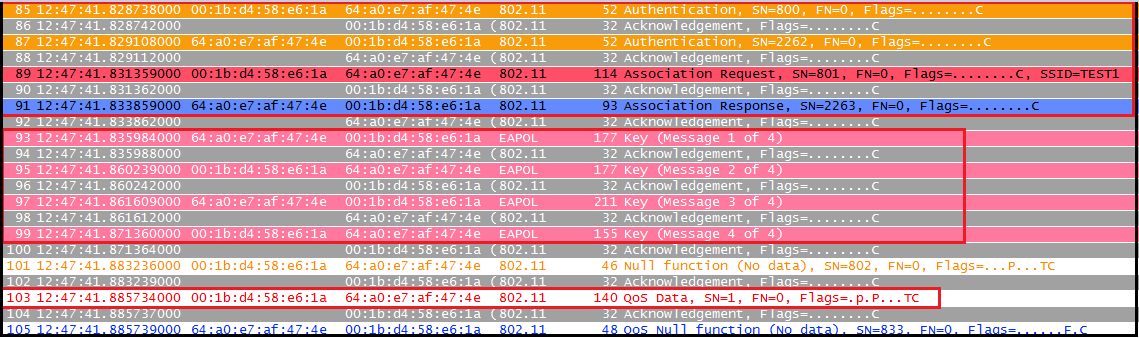 As you can see below, data frames are encrypted & you cannot see what traffic it is. I have taken frame 103 for example.
 Before we go & decrypt these messages, it is very important to understand that you have to properly capture “4-way handshake messages” in your sniffer in order to decrypt using Wireshark. If you are not capture M1-M4 messages successfully, Wireshark will not be able to derive all the keys to decrypt rest of that data. Here is one example where all the frames have not been captured properly in 4-way handshake process (This happened when I was using same USB adapter with Fluke WiFi Analyzer)
 Now you have to go to “Edit -> Preferences -> Protocol -> IEEE 802.11” & need to “Enable Decryption” checkbox. Then click on Edit “Decryption Keys” section & add your PSK by click “New“. You have to select Key-type as “WPA-pwd” when you enter the PSK in plaintext.
If you enter the 256bit encrypted key then you have to select Key-type as “wpa-psk“.If you want to get the 256bit key (PSK) from your passphrase, you can use this page. It use the following formula to do this conversion
PSK=PBKDF2(PassPhrase, SSID,SSIDLength,4096,256)
Here is 256bit PSK derived from above
 I have used simple plaintext password (ie wpa-pwd key type) in below. You can simply enter the plaintext password only (without SSID name).In this case wireshark try to use last seen SSID, It is always good practice to use <password:SSID>.
I have used my configured PSK “Cisco123Cisco123” & specify my SSID as “TEST1“. Refer this document for more details of this settings.
 Then you need to hit “Apply”
 As you can see below, now you will able to see the traffic inside these data frames. Here is the same frame (103) which you saw earlier in encrypted format, but now wireshark able to decrypt it.
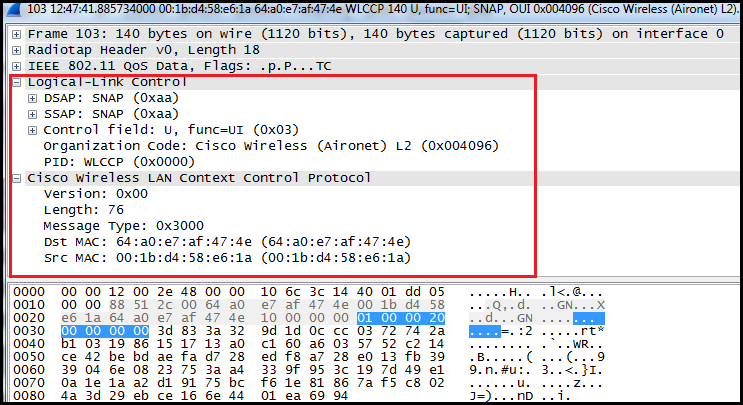 Now if you look further you will see the client is getting IP through DHCP (DORA–Discover, Offer, Request, ACK) & then register to a CME (SKINNYprotocol) & then establish a voice call (RTP) details. Now you can analyses these packets in detail
